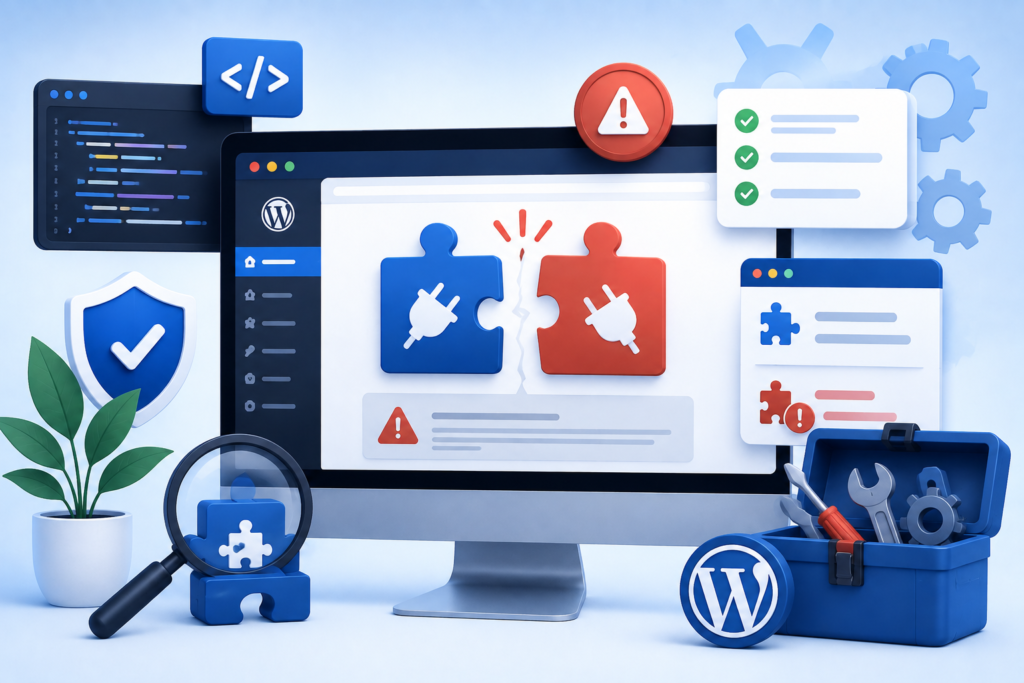
If you’ve ever activated a new WordPress plugin and watched your site break a white screen, a missing menu, a payment gateway that suddenly stopped working you’ve experienced a plugin conflict. It’s one of the most common issues WordPress site owners face, and the good news is: it’s almost always fixable.
In this guide, we’ll break down exactly why plugin conflicts happen, how to identify them, and how to resolve them safely without losing your data or sending your visitors to an error page.
What Is a WordPress Plugin Conflict?
A plugin conflict occurs when two or more plugins or a plugin and your theme interfere with each other’s functionality. WordPress is built on a modular system where plugins “hook into” core functions. When two plugins try to hook into the same function in incompatible ways, the result is a conflict.
Conflicts can cause a wide range of symptoms, including a white screen of death, 500 Internal Server errors, features disappearing or behaving unexpectedly, JavaScript errors in the browser console, slow page loading, database errors, and WooCommerce checkout or cart issues.
Before diagnosing any conflict, always create a full backup of your site. The team at Instant WordPress Help recommends this as a non-negotiable first step.
Why Plugin Conflicts Happen: The Root Causes
Understanding why conflicts occur helps you prevent them in the future. Here are the most common root causes.
Functions or Classes With the Same Name
PHP requires that every function and class name be unique. If two plugins define a function with the same name, PHP throws a fatal error. Many older or poorly coded plugins skip the best practice of prefixing function names with a unique namespace.
JavaScript or CSS Conflicts
Plugins may load different versions of the same JavaScript library such as jQuery or Select2 or include CSS rules that override each other. A slider plugin and a form builder using incompatible jQuery versions is a classic example.
Database Table Collisions
Some plugins create their own custom database tables. If two plugins try to create a table with the same name or alter the same table in conflicting ways, database errors can follow.
Hook and Filter Priority Clashes
WordPress’s action and filter hook system allows plugins to modify core behavior. Conflicts arise when two plugins attach to the same hook at the same priority, and the output of one breaks the expected input of the other.
Outdated Plugins or Themes
An outdated plugin may have been written for an older version of WordPress and may not be compatible with the current core API. Similarly, plugins built for PHP 7 can fail silently or not so silently on PHP 8.
If plugin conflicts are causing downtime, our experts can diagnose and fix WordPress issues quickly usually within 1 to 24 hours, with no charge until the issue is resolved
How to Identify Which Plugin Is Causing the Conflict
Diagnosing a plugin conflict is a process of elimination. Here is a reliable, step-by-step method.
Step 1: Enable WordPress Debugging
Add the following lines to your wp-config.php file to enable error reporting: define(‘WP_DEBUG’, true), define(‘WP_DEBUG_LOG’, true), and define(‘WP_DEBUG_DISPLAY’, false). Then check the /wp-content/debug.log file for error messages. These often name the specific plugin or file causing the issue.
Step 2: Deactivate All Plugins
If you can still access your WordPress admin panel, go to Plugins → Installed Plugins and deactivate all plugins at once using the bulk action. Check whether the issue resolves. If it does, a plugin is definitely the culprit. If you cannot access the admin panel, use FTP or your hosting file manager to rename the /wp-content/plugins/ folder. WordPress will deactivate all plugins automatically.
Step 3: Reactivate Plugins One by One
Reactivate each plugin individually, testing your site after each activation. When the problem reappears, you’ve found the conflicting plugin. If two plugins are involved, continue reactivating to identify the second one.
Step 4: Switch to a Default Theme
If deactivating all plugins doesn’t resolve the issue, the conflict may involve your theme. Switch temporarily to a default WordPress theme like Twenty Twenty-Four. If the problem disappears, your theme is part of the conflict.
Always test in a staging environment, not live. Our WordPress Maintenance Service includes staging environment setup and safe update protocols.
How to Fix Plugin Conflicts Safely
Once you’ve identified the conflicting plugin(s), here are your options for resolving the issue.
Option 1: Update the Conflicting Plugin(s)
Check if the plugin developer has released an update that addresses compatibility issues. Go to Plugins → Installed Plugins and look for available updates. Always update plugins one at a time, and back up your database first.
Option 2: Contact the Plugin Developer
If no update is available, report the conflict to the plugin developer. Include details about which plugins are conflicting and the PHP and WordPress version you’re running. Many developers resolve such conflicts in a patch release.
Option 3: Find an Alternative Plugin
If the plugin hasn’t been updated in over a year or the developer is unresponsive, it may be time to find a well-maintained alternative. Check the WordPress plugin repository for plugins with recent updates and active support forums.
Option 4: Use a Plugin Compatibility Checker
Tools like Health Check & Troubleshooting (a free WordPress plugin) allow you to enter troubleshooting mode which deactivates all plugins only for your admin session so you can diagnose issues without affecting live visitors.
Option 5: Hire a WordPress Expert
For critical issues especially on eCommerce or membership sites the safest approach is to bring in a professional. Our team at Instant WordPress Help specializes in resolving plugin conflicts, with a flat fee of under $39 per fix and resolution within 24 hours.
How to Prevent Plugin Conflicts in the Future
Keep everything updated. Run core, plugin, and theme updates regularly. Our WordPress Maintenance Service handles weekly updates automatically.
Use a staging environment. Test new plugins on a staging site before deploying to production.
Avoid plugin bloat. Only install plugins you actively use. Deactivate and delete any plugin you no longer need.
Vet plugins before installing. Check the last updated date, number of active installs, and support forum activity on the WordPress plugin directory.
Back up regularly. Automated daily backups give you a safe rollback point. Our Premium Maintenance Plan includes daily backups.
Monitor your site. Uptime monitoring tools alert you to issues before your customers notice them.
When Plugin Conflicts Lead to Security Vulnerabilities
It’s worth noting that not all plugin conflicts are simply functional problems; some can open security gaps. A security plugin and a caching plugin may conflict in a way that bypasses authentication checks or exposes admin URLs.
If your site has been behaving strangely after a plugin update and you’re seeing unfamiliar user accounts, unexpected redirects, or strange code injections, you may be dealing with more than a conflict; it could be a malware infection. Our Malware Removal Service can sanitize your site, remove malicious scripts, and harden it against future attacks:
👉 Explore the Service https://instantwordpresshelp.com/services/malware-removal-service/
A Quick Checklist: Resolving Plugin Conflicts
- Back up your entire site (files + database)
- Enable WP_DEBUG and check the debug log
- Deactivate all plugins via admin panel or FTP
- Switch to a default WordPress theme
- Reactivate plugins one by one and test after each
- Identify the conflicting plugin(s)
- Check for available updates for the conflicting plugin
- Test in a staging environment before deploying the fix
- Monitor your site after the fix is applied
Conclusion
Plugin conflicts are an inevitable part of managing a WordPress site but they don’t have to be catastrophic. With a systematic approach to diagnosis and the right preventative habits, you can keep your site running smoothly.
If you’re dealing with a conflict right now and need it resolved fast, the team at Instant WordPress Help is available 24/7. Whether it’s a quick plugin fix, a malware cleanup, or an ongoing maintenance plan, we’ve got you covered with transparent pricing and no charge until the issue is fixed.
FAQs:
Q1. How do I know if a plugin conflict is causing my WordPress site to break?
Look for white screens, 500 errors, or broken features deactivate all plugins and see if the issue disappears.
Q2. Can I fix a plugin conflict without losing my site data?
Yes, plugin conflicts don’t affect your content just back up first and deactivate the conflicting plugin.
Q3. What should I do if I can’t access my WordPress admin panel due to a conflict?
Renaming the /wp-content/plugins/ folder via FTP WordPress will auto-deactivate all plugins and restore your access.
Q4. How often should I update my plugins to avoid conflicts?
Update plugins at least once a week, one at a time, and always test on a staging site first.
Q5. When should I hire a professional to fix a plugin conflict?
If your site is business-critical, get expert help fast Instant WordPress Help fixes issues within 24 hours for under $39.
Explore More Blogs
https://sites.google.com/view/5-signs-your-wordpress-site/home
https://instantwordpresss.blogspot.com/2026/05/5-signs-your-wordpress-site-urgently.html
https://webyourself.eu/blogs/1964795/5-Signs-Your-WordPress-Site-Urgently-Needs-Migration-And-How